


Uninstalling a program on Windows may seem simple, but the default Windows Uninstaller leaves behind hidden files, folders, registry entries, and other leftovers that continue to consume storage space. Over time, these leftover files can slow down your PC and make your system feel cluttered. That is why I decided to switch from the Windows Uninstaller to IObit Uninstaller. Today, in this article, I will cover everything about this program and explain why it is a far better option for completely uninstalling unwanted software. Ensure you read this guide to the end.
Part 1: What is IObit Uninstaller?
IObit Uninstaller is a powerful uninstalling tool for Windows that helps users remove unwanted programs, stubborn apps, browser extensions, bundled software, and leftover files from their PCs. Unlike the default Windows Uninstaller, which only removes the main program, IObit Uninstaller scans the system for remaining files, folders, and registry entries after uninstallation. One of the best parts of this tool is that it allows users to easily remove stubborn programs that cannot be deleted through normal uninstall options. It also includes useful features like batch uninstall, software health checks, browser extension removal, and real-time monitoring of program installations.
Part 2: Key Features of IObit Uninstaller
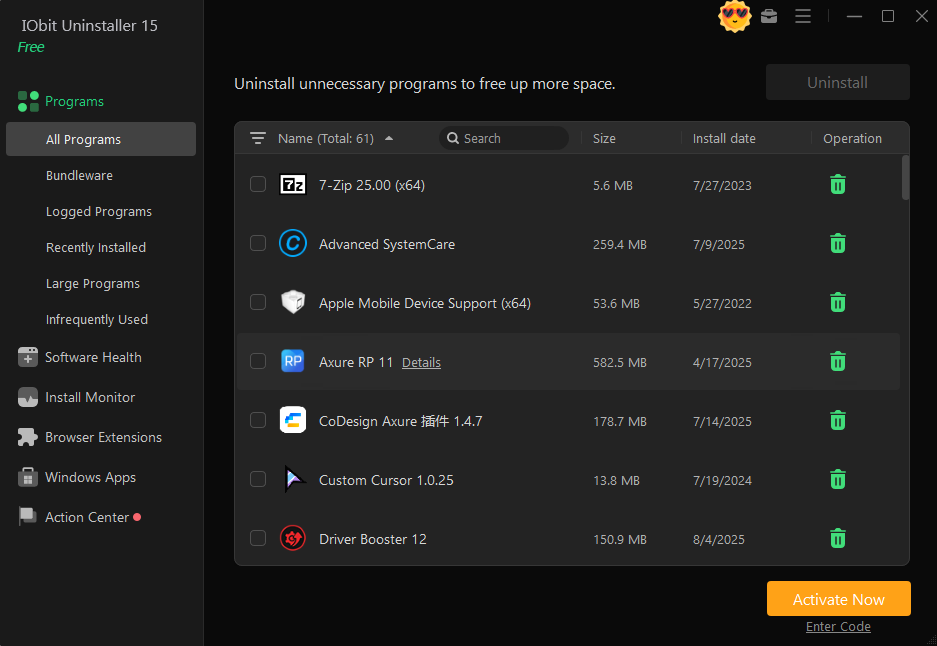
IObit Uninstaller comes with a wide range of useful features that make software removal easier, faster, and more complete than the default Windows Uninstaller. Here are the top features of this program that I personally liked:
- Complete Program Removal: The feature that I liked the most is the complete program removal. Instead of deleting only the main software files, it scans your PC for leftover files, folders, registry entries, shortcuts, and other remaining data after the uninstall process. This helps keep your system cleaner and free up storage.
- Batch Uninstall: Batch Uninstall helped me save a lot of time and effort. With the default Windows Uninstaller, I had to remove programs one by one, which was time-consuming. However, with IObit Uninstaller, I can select multiple programs and uninstall them at the same time. This makes the cleanup process much faster and easier.
- Software Health Check: IObit Uninstaller includes a Software Health feature that helps you manage hidden software permissions, block disruptive pop-up notifications, clean unnecessary setup files, and remove malicious software and browser extensions. It enhances the performance of all your software while also reducing potential security threats to your system.
- Multiple Powerful Tools: One of the best things that I found about this tool is that it’s not limited to software uninstallation. IObit Uninstaller also comes with multiple powerful tools that help users manage their PC more effectively. It includes powerful tools, such as Program Uninstaller, Browser Extension Remover, File Shredder, and more.
- Stubborn Program Remover: With support for removing over 4,000 stubborn programs, the Stubborn Program Remover ensures every associated file, registry entry, and leftover component is completely erased.
- Intuitive Interface: Beginner users like me face trouble using defaul Window uninstaller because it sometimes feels confusing. IObit Uninstaller offers a much more intuitive and user-friendly interface. All the main features of this program are clearly organized, making it easy to find installed programs and uninstall them effortlessly.
Part 3: Why the Windows Default Uninstaller Was Not Enough
The Windows Default Uninstaller is useful for basic software removal, but for me, it was not enough. First, the process of uninstalling the program was confusing for me, and it took a lot of time. I had to go through settings, find the program, uninstall it, and then repeat the same process if I wanted to remove multiple programs or apps.
Another issue was that the uninstaller for Windows only removed the main program. It did not scan for hidden leftover files, folders, or other junk data that stayed behind after uninstalling software. That is why I switched to IObit Uninstaller, which offers an easy-to-use interface, deeper program removal, and batch uninstall options.
Part 4: Step-by-Step Guide: How to Use IObit Uninstaller
The program offers simple steps to remove the program from the PC. Follow the instructions below to do it:
- Go to the IObit Uninstaller official site and download the latest version of the program on your PC. Launch it and select the “Programs” option from the left panel.
- Hit the “All Programs” option, and a list of installed PC programs will appear on your screen. Choose the program that you want to remove from your PC. Users can select multiple programs at the same time.
- Finally, click on the “Uninstall” button available at the top right corner. The tool will begin the uninstallation process and remove the selected programs from your PC. Along with leftover files, shortcuts, junk files, and registry traces.
Conclusion
For me, switching from the Windows Default Uninstaller to IObit Uninstaller was a smart decision. IObit Uninstaller made the whole process easier, faster, and more complete. Its intuitive interface allows non-tech users to uninstall programs without facing confusion or difficulty.

Pun enthusiast, wordplay wizard, and the mastermind behind Funnnypuns.com. David turns everyday language into laugh-out-loud moments—one pun at a time!


Leave a Comment